
“It still works… so what’s the problem?”
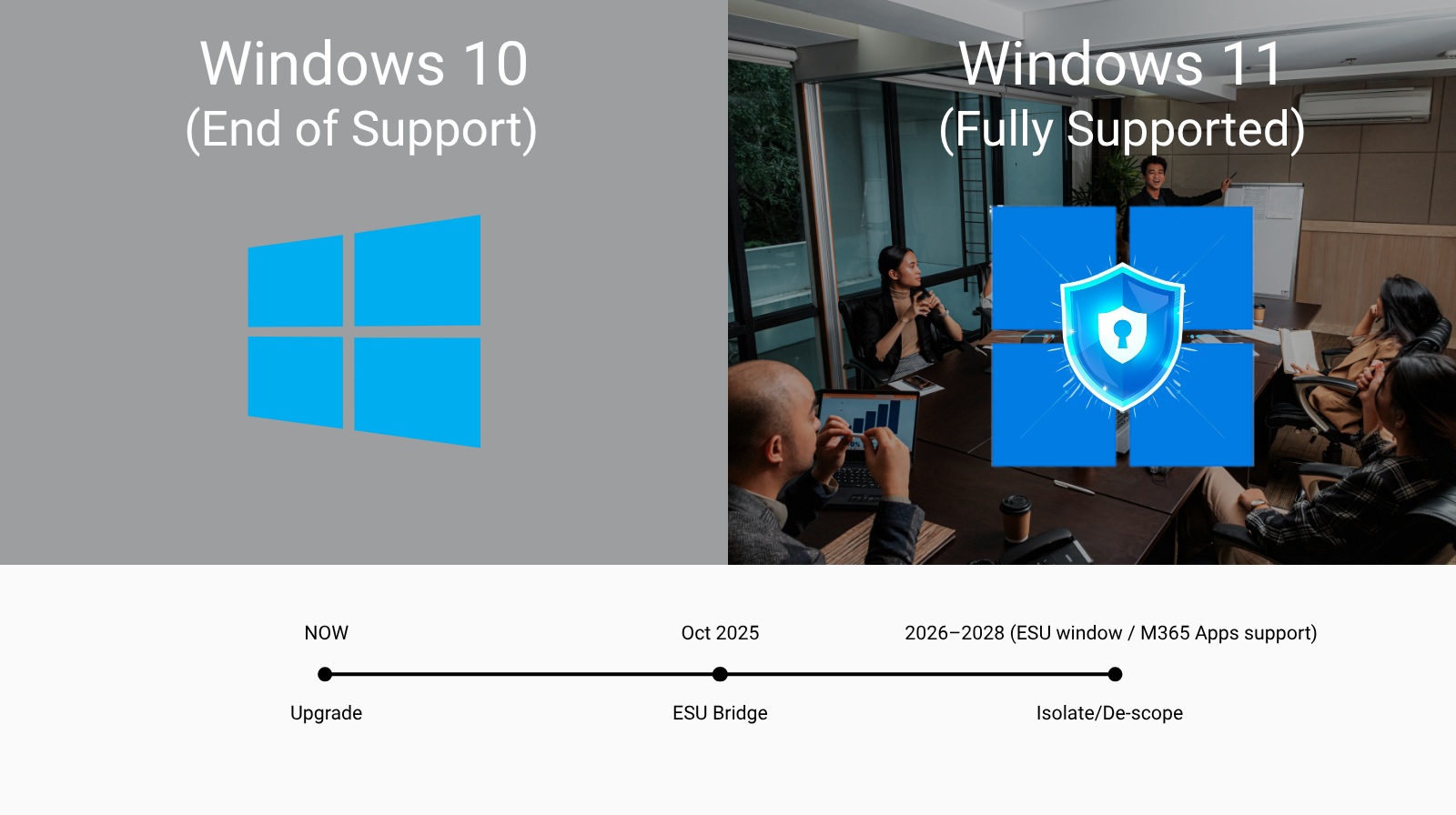
If you’re a UK small business owner, you might be thinking: “Our Windows 10 PCs are fine — why rush?” Totally fair. They boot, Outlook opens, files save, and nobody’s shouting. But from 14 October 2025, Windows 10 reaches end of support. That’s the day Microsoft stops providing security fixes and updates for Windows 10 — and that changes the risk picture overnight. Microsoft Support
In this plain-English guide, we’ll unpack what “end of support” actually means, the hidden risks of staying put, and practical options — from low-disruption upgrades to safe stopgaps — so you can keep your business simple, secure, and sorted.
Why end of support matters (even if everything “looks fine”)
When an operating system is out of support, the vendor no longer ships security updates for newly discovered vulnerabilities. Attackers know this and actively target organisations that delay upgrades — it’s like leaving your shop’s back door unlocked. From 14 October 2025, Windows 10 won’t receive new security fixes, feature updates or routine support from Microsoft. Microsoft Support
You can continue using Windows 10, but you’ll carry more risk, face compliance headaches (especially with Cyber Essentials), and gradually run into software support limitations.
The headline facts (no jargon)
- End date: Windows 10 support ends 14 October 2025. After that: no new security patches or features. Microsoft Support
- Paid stopgap (ESU): Microsoft’s Extended Security Updates (ESU) programme can deliver critical/important security patches post-EoS for a limited time, typically up to three years. It’s designed as a temporary bridge, not a long-term plan. Microsoft Learn+1
- Microsoft 365 Apps: Will continue to receive security updates on Windows 10 until 10 October 2028, but there are support limitations and feature caps — it’s a safety net while you move, not a comfort blanket forever. Microsoft Learn
- Edge browser: Microsoft Edge will keep receiving updates on Windows 10 22H2 until at least October 2028, and doesn’t require ESU for Edge itself — handy for web security during a transition. Microsoft Learn
Hidden risk #1: A growing security gap
Security vulnerabilities are discovered constantly. On a supported OS, patches close those holes. On Windows 10 after October 2025, new holes stay open — permanently — unless you’re on ESU (and even then, ESU only covers certain categories, not new features or quality improvements). This increases the chance of malware infections, ransomware, data loss, and business interruption. Microsoft Learn
What this looks like day-to-day:
- More phishing attacks succeed because unpatched components are easier to exploit.
- Antivirus alone can’t compensate for missing OS patches.
- A breach on one old PC can impact your whole network share or cloud accounts.
Hidden risk #2: Compliance (Cyber Essentials & customers)
If you’re aiming for Cyber Essentials (or keeping your badge), the guidance is crystal clear: in-scope software must be supported. Unsupported operating systems should be removed, isolated from the internet, or taken out of scope with strict controls. Leaving Windows 10 in scope without ESU after October 2025 risks automatic assessment failure. Even if you’re not pursuing the badge, many customers and insurers now expect supported, patched systems as a baseline. ce-knowledge-hub.iasme.co.uk+2NCSC+2
Practical impact:
- Tenders and supply-chain questionnaires increasingly ask about supported software.
- Cyber insurance applications scrutinise patch status and OS support.
- Failure to meet basic hygiene can jeopardise cover or claims.
Hidden risk #3: Software support gets awkward
While some apps will continue to run on Windows 10, support becomes tricky. Microsoft 365 Apps will get security updates for three extra years (to October 2028), but Microsoft has set expectations: if an issue only occurs on Windows 10 and not on Windows 11, support may tell you to move to Windows 11 rather than engineer a fix. That can mean slower resolutions and more operational friction. Microsoft Learn
Browsers are a mixed bag. Microsoft has committed to updating Edge on Windows 10 22H2 until at least 2028, which helps reduce web risk in the interim — but that doesn’t change the underlying OS exposure, and other vendors’ timelines may differ. Microsoft Learn
Hidden risk #4: Operational drag and staff time
Old devices running an out-of-support OS often become the slowest link in your IT chain. That means everyday delays (logins, updates, crashes) and more time spent on workarounds. Two or three minutes lost here and there quickly add up — and if something goes wrong, recovery takes longer on legacy kit.
Hidden risk #5: Upgrade crunches & e-waste traps
Some older PCs can’t meet Windows 11’s requirements (TPM 2.0, Secure Boot, supported CPUs). Leaving upgrades until the last minute creates a supply bottleneck for hardware, project pressure on your team, and a higher chance of rushed, like-for-like purchases (which can increase costs and e-waste). Planning early lets you phase replacements sensibly and evaluate greener options.
Your options (from least disruption to most)
Below are realistic paths for UK small businesses. Choose the mix that fits your budget, risk appetite and timelines.
Option A: Upgrade in place (best overall for most)
- What: Move compatible devices to Windows 11.
- Why: Restores full support, modern security, and longer runway.
- Good for: Most devices bought in the last 3–4 years.
Option B: Buy time with ESU (temporary, not forever)
- What: Subscribe affected Windows 10 PCs to Microsoft’s Extended Security Updates programme post-October 2025.
- Why: Keeps critical/important security patches flowing while you phase upgrades.
- Caveats: It’s a bridge, not a destination; you’ll still face app support limits and rising ESU costs over time. Microsoft Learn+1
Option C: Replace selectively (prioritise weak links)
- What: Identify the oldest or business-critical PCs and replace first; keep newer Windows 10 devices on ESU briefly.
- Why: Spreads cost; targets the biggest risks early.
Option D: Re-scope or isolate (for genuine exceptions)
- What: If a device must stay on Windows 10 (e.g., tied to legacy equipment), remove it from internet-connected scope, isolate it on a dedicated subnet/VLAN, lock down access, and document the control (for audit/Cyber Essentials).
- Why: Reduces exposure when replacement isn’t viable yet. ce-knowledge-hub.iasme.co.uk
A simple Windows 11 migration plan (that won’t derail your week)
1) Take stock (1–2 hours):
List devices, age, CPU, RAM, storage, warranty status, and Windows 11 compatibility. Tag business-critical roles (accounts, sales, warehouse ops).
2) Prioritise (half a day):
Phase 1 = vulnerable/high-impact PCs; Phase 2 = the rest. Pencil sensible dates (e.g., Friday afternoons or early mornings).
3) Decide per device:
- If compatible → upgrade (pilot a few machines first).
- If incompatible → replace or place on ESU while you plan the swap. Microsoft Learn
4) Back up & test:
Ensure file and email backups are current. Test core apps (line-of-business systems, printers, VPN).
5) Upgrade with a checklist:
Script the steps (BitLocker keys, drivers, MFA sign-in, printers, OneDrive/SharePoint). Communicate downtime and give users a short “what’s new” guide.
6) Post-move tweaks:
Tidy desktop policies, confirm endpoint protection, and set patching schedules. (Cyber Essentials expects critical/high updates within 14 days.) NCSC
What if we absolutely must stay on Windows 10 for now?
If you have genuine blockers (budget cycle, line-of-business software, specialist hardware), aim to reduce risk while you bridge to Windows 11:
- Enroll impacted PCs into ESU to keep critical security updates coming. Microsoft Learn
- Harden the build: Enforce MFA, strong passwords, least-privilege accounts; disable legacy protocols.
- Isolate legacy devices: Separate VLAN, deny internet, strict allow-lists, monitor closely. ce-knowledge-hub.iasme.co.uk
- Standardise your browser: Use Microsoft Edge (keeps updating on Windows 10 22H2) and enable SmartScreen/Defender protections. Microsoft Learn
- Document exceptions: For Cyber Essentials or client audits, record why a device is on Windows 10, what controls are in place, and when it will be replaced. NCSC
Benefits of moving sooner rather than later
- Lower cyber risk: Modern security baselines by default.
- Happier, faster staff: Better performance and fewer niggles.
- Smoother audits & insurance: Supported software ticks key boxes. NCSC
- Predictable costs: Planned upgrades beat emergency fixes every time.
Actionable tips (you can start this week)
- Run a device report (age/spec/compatibility) — it’s your roadmap.
- Pick your pilot (2–3 users) and test Windows 11 with your critical apps.
- Budget by quarter — replace the oldest 25–30% first; ESU for short-term cover. Microsoft Learn
- Harden Windows 10 holdouts — isolate, restrict, and monitor. ce-knowledge-hub.iasme.co.uk
- Communicate early — tell your team what’s changing and why (“less downtime, better security”).
- Book a quick call with Harmony IT — we’ll map the simplest path that fits your budget and timeline.
Sticking with Windows 10 after October 2025 might feel like a money-saver, but the hidden risks — security, compliance, support friction, and operational drag — stack up quickly. Whether you’re ready to move everything to Windows 11 or need a short-term bridge with ESU, there’s a calm, sensible plan that keeps your business secure and sorted.
Want a no-jargon plan for your exact mix of PCs? Book a quick chat and we’ll map the right path — upgrades where it makes sense, ESU where it’s needed, and zero drama.
[Link: Contact page] • [Link: IT Support] • [Link: Windows 11 Upgrade Services]